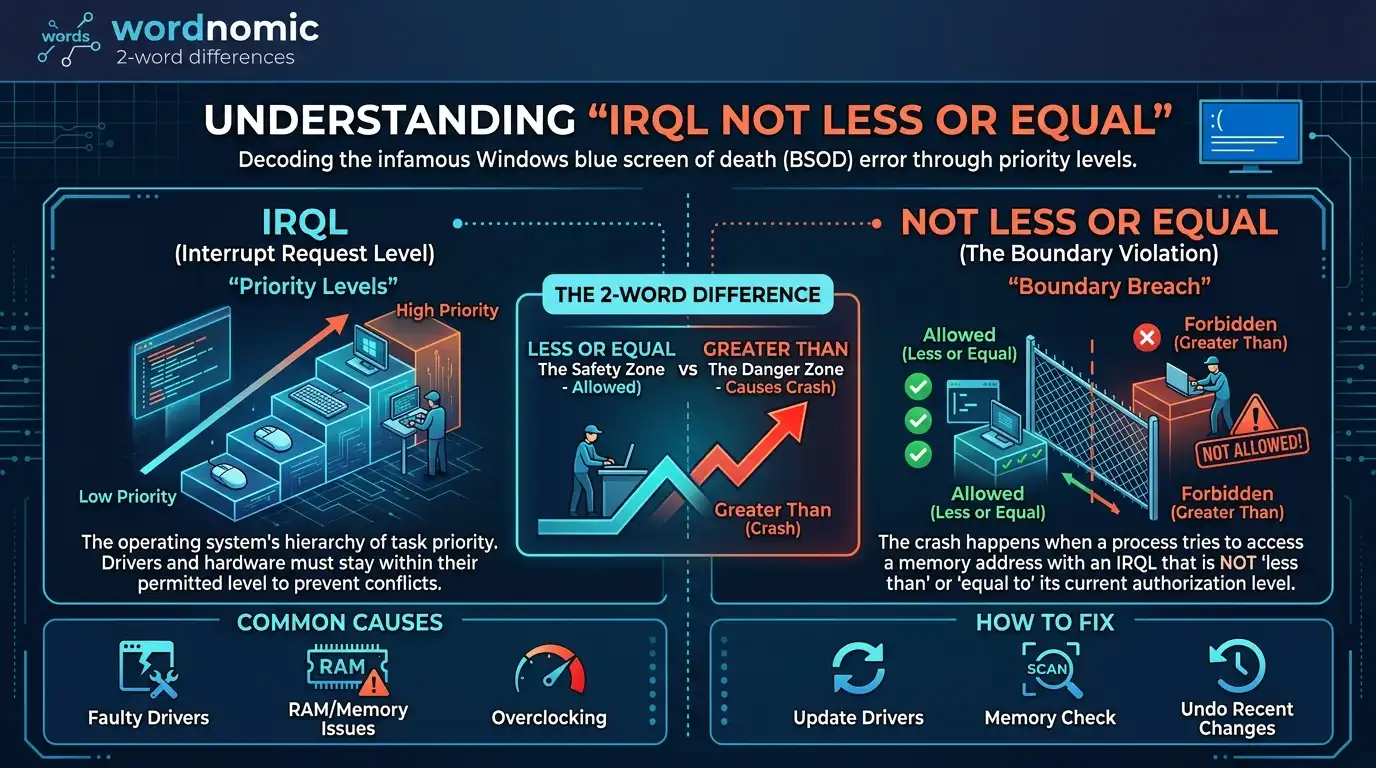
Getting the IRQL_NOT_LESS_OR_EQUAL error can be scary. Your Windows PC may suddenly show a blue screen and restart.
But do not panic. This error does not always mean that your computer is badly damaged.
IRQL_NOT_LESS_OR_EQUAL is a Windows blue screen error. Its stop code is 0xA. It usually happens when Windows or a driver tries to use computer memory in a way that Windows does not allow.
A bad or old driver is one possible cause. Memory problems, new hardware, and some system changes can also cause it.
The good news is that you can check these problems one by one.
This guide explains what the error means, why it happens, and what you can do to fix it. The steps are written in simple English so you can follow them even if you are not a computer expert.
What Does IRQL Not Less or Equal Mean?
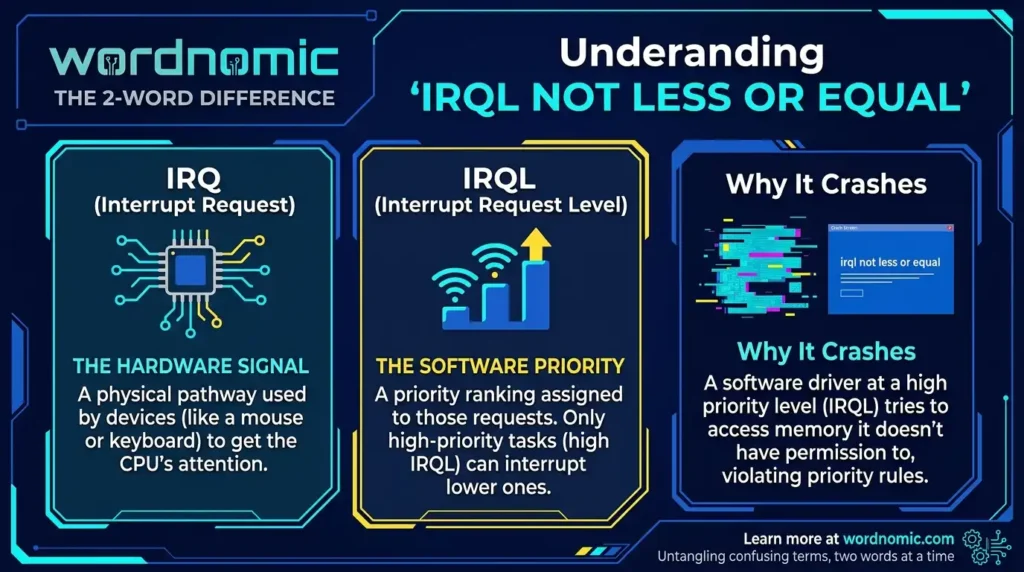
IRQL_NOT_LESS_OR_EQUAL is a Windows error that happens when a system part or driver tries to use memory incorrectly.
Windows uses memory to run programs and system tasks. It also uses drivers to talk to your hardware.
If a driver or system part makes an unsafe memory request, Windows may stop the computer to protect the system.
The error is also known as:
Bug Check 0xA
or
Stop Code 0xA
You may see something like:
IRQL_NOT_LESS_OR_EQUAL
on a blue screen.
The message itself does not tell you exactly which part is broken. You need to check the possible causes.
Why Does IRQL_NOT_LESS_OR_EQUAL Happen?
There are several possible reasons.
The most common things to check are:
- Bad or old drivers
- RAM problems
- New hardware
- A recent Windows update
- A recent driver update
- Some system software
- Other hardware problems
A driver is often a good place to start.
A driver is software that helps Windows communicate with hardware. For example, your graphics card, Wi-Fi device, sound device, and other hardware use drivers.
If one of these drivers has a problem, it may cause a blue screen.
First, Think About What Changed
Before trying many fixes, ask yourself:
What changed before the problem started?
Did you:
- Install a new driver?
- Update Windows?
- Add new RAM?
- Install a new graphics card?
- Install new software?
- Install a new antivirus program?
- Update your BIOS?
- Add a new USB device?
This can give you a useful clue.
For example, if your computer worked fine for months and the blue screen started right after a graphics driver update, that driver should be checked first.
You do not have to assume it is the cause. Just treat it as an important clue.
How to Fix IRQL_NOT_LESS_OR_EQUAL
1. Update Windows
Start with the easiest step.
Open:
Settings → Windows Update
Then select:
Check for updates
Install any available updates and restart your computer.
You should also check for optional driver updates if Windows shows them.
Keeping Windows updated can help fix problems with system files and hardware support.
2. Update Your Drivers
Drivers are very important when you see this error.
Pay special attention to:
- Graphics drivers
- Wi-Fi drivers
- Network drivers
- Audio drivers
- Chipset drivers
- Storage drivers
You can check Windows Update first.
For important hardware, you can also check the official website of the hardware maker.
For example, if the problem started after a graphics driver update, check whether a newer driver is available.
If the problem started immediately after a driver update, you may also need to roll back the driver.
That means going back to the previous driver version.
3. Check Your RAM
RAM is your computer’s short-term memory.
Bad or unstable RAM can cause different types of Windows crashes, including this one.
Windows has a built-in tool called Windows Memory Diagnostic.
How to open it
Press:
Windows Key + R
Then type:
mdsched
Press Enter.
Windows will give you an option to restart the computer and check the memory.
Save your work before starting because the computer will restart.
If the test finds memory problems, your RAM needs more testing.
Do not immediately buy new RAM just because you saw this error. Test the memory first.
4. Remove Recently Added Hardware
Did you recently install new hardware?
For example:
- New RAM
- New graphics card
- New Wi-Fi card
- New storage drive
- New USB device
If the blue screen started after the hardware was added, that hardware may be related to the problem.
If it is safe and practical, remove the new hardware and check whether the problem continues.
You are not comfortable opening your computer, ask a qualified technician for help.
5. Check Your Graphics Driver
If the blue screen happens while gaming or using graphics-heavy software, check your graphics driver.
The graphics card needs a driver to work with Windows.
A driver problem can sometimes cause a system crash.
Try updating the driver from the official graphics card manufacturer’s website.
If the problem started after an update, check whether you can return to the previous driver.
Do not install random drivers from unknown websites.
6. Check When the Blue Screen Happens
The time and situation of the crash can give you a clue.
If it happens while gaming
Check:
- Graphics driver
- Graphics card
- RAM
- Recent driver changes
- System temperature
If it happens when using Wi-Fi
Check:
- Wi-Fi driver
- Network adapter
- Recent network driver updates
If it happens during startup
Check:
- Recently installed drivers
- New hardware
- Startup software
- Recent Windows changes
If it happens randomly
Start with:
- RAM testing
- Driver updates
- Recent hardware
- Recent software changes
These are clues, not guaranteed answers.
7. Check Event Viewer
Windows keeps records of many system problems.
One useful tool is Event Viewer.
Search for Event Viewer in Windows.
Open:
Windows Logs → System
Look around the time when the blue screen happened.
You may see errors close to the crash.
Do not worry if you see many warnings. Windows can create many system events.
Look for repeated errors that happen around the same time as the blue screen.
8. Try Reliability Monitor
Another useful Windows tool is Reliability Monitor.
It gives you a simple timeline of crashes and other problems.
You can search for:
Reliability Monitor
You can also press Windows Key + R and type:
perfmon /rel
Then press Enter.
Look for the day when the blue screen happened.
If the same program or problem appears again and again, it may give you a useful clue.
9. Check for Hardware Problems
If updating drivers and checking RAM do not solve the problem, hardware may need more attention.
Possible hardware problems can involve:
- RAM
- Graphics card
- Motherboard
- Storage
- Network hardware
- Other recently installed parts
Many computer makers provide hardware testing tools.
If your computer is still under warranty, contact the manufacturer before opening or changing hardware yourself.
What If the Error Started After a Windows Update?
If the problem started right after a Windows update, do not automatically assume that Windows itself is broken.
A Windows update can change how drivers and other system software work.
A driver that worked before the update may have a problem after the update.
Check:
- Windows updates
- Device drivers
- Antivirus software
- Backup software
- Other programs that work closely with Windows
Think about what changed around the same time.
What If My Computer Keeps Crashing?
If your computer crashes again and again, take the problem seriously.
Start with the basic checks:
- Update Windows.
- Check your drivers.
- Test your RAM.
- Check recent hardware.
- Check Event Viewer.
- Check Reliability Monitor.
If Windows cannot stay on long enough to do these steps, you may need to use Safe Mode or Windows Recovery options.
If you are not comfortable with advanced troubleshooting, a computer technician can help.
Does IRQL_NOT_LESS_OR_EQUAL Mean My RAM Is Bad?
No.
This is a common misunderstanding.
RAM can cause the error, but it is not the only possible cause.
A bad driver can also cause it.
Other hardware and system problems can also be involved.
That is why you should test the RAM instead of replacing it immediately.
Is IRQL_NOT_LESS_OR_EQUAL a Virus?
Not by itself.
Seeing this error does not mean that your computer has a virus.
The error is mainly related to a problem with memory access at the Windows system level.
You should still keep Windows Security or another trusted security program updated, but do not assume malware is the cause just because you see this blue screen.
Is IRQL_NOT_LESS_OR_EQUAL Serious?
It can be serious if it keeps happening.
A single blue screen does not always mean that your computer has a major hardware problem.
Sometimes a driver may crash once and never cause the problem again.
But if you see the same error many times, you should find the cause.
Repeated blue screens can lead to lost work and other problems.
Common Mistakes When Fixing This Error
Reinstalling Windows Too Quickly
Do not immediately reinstall Windows.
If the real problem is bad RAM or a driver, reinstalling Windows may not fix it.
Find the likely cause first.
Assuming It Is Always RAM
RAM is only one possible cause.
Test it, but also check your drivers and recent changes.
Installing Random Driver Programs
You do not need to install a random driver-updater program just because Windows shows a blue screen.
Start with Windows Update and the official hardware manufacturer’s website.
Changing Everything at Once
Do not update every driver, replace RAM, change BIOS settings, and reinstall Windows at the same time.
If you do this, you may never know what fixed the problem.
Change one important thing at a time when possible.
Ignoring New Hardware
If the problem started after installing new hardware, do not ignore that fact.
The timing can be a very useful clue.
A Simple Fix Order
If you do not know where to start, follow this order:
| Step | What to Do |
| 1 | Update Windows |
| 2 | Check important drivers |
| 3 | Test your RAM |
| 4 | Think about recent changes |
| 5 | Check new hardware |
| 6 | Check Event Viewer |
| 7 | Check Reliability Monitor |
| 8 | Run hardware tests |
| 9 | Get professional help if needed |
This gives you a simple path without changing too many things at once.
When Should You Get Professional Help?
You should consider professional help if:
- The computer keeps crashing.
- Windows cannot start normally.
- A memory test reports problems.
- The computer shuts down during hardware testing.
- You suspect motherboard or hardware damage.
- You are not comfortable opening the computer.
- You have important files and do not want to risk making the problem worse.
If the PC contains important work or personal files, back them up when possible before doing major repairs.
Frequently Asked Questions
What is IRQL_NOT_LESS_OR_EQUAL?
It is a Windows blue screen error. Windows uses this error when a system part or driver tries to access memory in an unsafe way. Its bug check code is 0xA.
What is the main cause of IRQL_NOT_LESS_OR_EQUAL?
There is no single cause. A bad driver is one common possibility. RAM, new hardware, Windows changes, and other system problems can also cause it.
How do I fix IRQL_NOT_LESS_OR_EQUAL?
Start by updating Windows and your important drivers. Then test your RAM. If the problem continues, check recent hardware and software changes, Event Viewer, and Reliability Monitor.
Can bad RAM cause this error?
Yes. Bad or unstable RAM can cause this error. However, the error does not prove that your RAM is bad. Use Windows Memory Diagnostic to test it.
Should I reinstall Windows?
Not as your first step. Reinstalling Windows may not fix a bad driver or faulty hardware. Try the basic checks first.
Can a driver cause IRQL_NOT_LESS_OR_EQUAL?
Yes. A faulty or outdated driver can cause this blue screen. If the problem started after a driver update, check that driver first.
Why does my PC keep showing this error?
Repeated errors usually mean that the cause has not been fixed. Check your drivers and RAM first. Then look at recent hardware or software changes. If the problem continues, deeper testing may be needed.
Final Takeaway
IRQL_NOT_LESS_OR_EQUAL is a Windows blue screen error. It usually means that Windows or a driver tried to use memory in an unsafe way.
The error does not automatically mean that your RAM is bad.
A driver, RAM problem, new hardware, or recent system change may be responsible.
The best approach is to check the problem step by step.
First, update Windows and your drivers. Then test your RAM. After that, think about anything you installed or changed before the blue screens started.
If the error keeps coming back, use Event Viewer and Reliability Monitor to look for clues. You may also need hardware testing or help from a technician.
The main thing is do not guess the cause too quickly. Check the most likely problems one at a time. This makes it much easier to find what is actually causing the crash.

Emily Carter is an English grammar writer based in Portland, Oregon, with 7+ years of experience turning tricky grammar rules into simple, easy lessons.